POHODA Label Printer and Barcode Scanner Setup That Works
Most POHODA label printer problems are not printer problems. The scanner beeps but nothing lands in the stock card, the barcode label comes out half a label too low, or the EAN on a price tag will not scan at the till. In nearly every case the hardware is fine and one setting is wrong: the scanner is in keyboard mode instead of COM mode, or the Windows driver does not know the size of the label roll. This guide covers what POHODA from STORMWARE actually expects from a barcode scanner and a thermal label printer, which models to order, and how to set them up so the first label prints correctly.
Which POHODA label printer and barcode scanner should you order?
If you already know what you print and how you scan, start here. Every printer below prints through a standard Windows driver, which is how POHODA prints all of its reports.
| Your situation | Order this | Why |
|---|---|---|
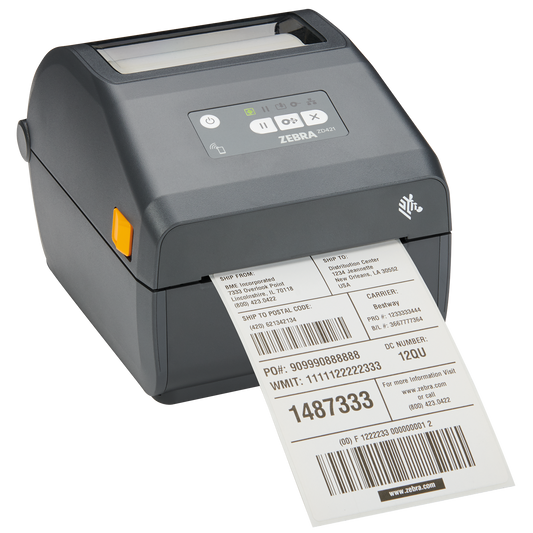
| Price tags and shelf labels on paper, short life, no ribbon to manage | Zebra ZD421d (ZD4A042-D0EX02EZ) | Direct thermal, 203 dpi, USB plus Wi-Fi 6 and Bluetooth 5.3, so it can sit on the shop network |
| Product and warehouse labels that must survive handling, cold or sunlight | Zebra ZD421t (ZD4A042-30EX02EZ) | Thermal transfer with a ribbon, takes 74 m and 300 m ribbons, prints on paper and synthetic labels |
| Thermal transfer on a tighter budget, wired network | TSC TE210 (99-065A301-00LF00) or Honeywell PC42E-T (PC42E-TB02200) | Both 4-inch, 203 dpi, USB and Ethernet. The TE210 also has RS-232. The PC42E-T ships without the C13 power cord |
| Labels or tags that must be cut to length | Zebra ZD230t with cutter (ZD23042-32EC00EZ) | Factory-fitted cutter, USB and Ethernet, Zebra's value 4-inch model |
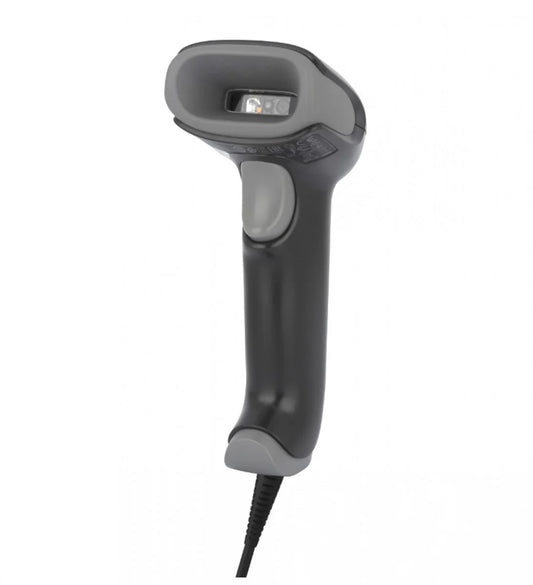
| Corded scanner at the counter or goods-in desk | Zebra DS2208 (DS2208-SR7U2100SGW) | On STORMWARE's own list of tested scanners, reads 1D and 2D, supplied with USB cable and stand |
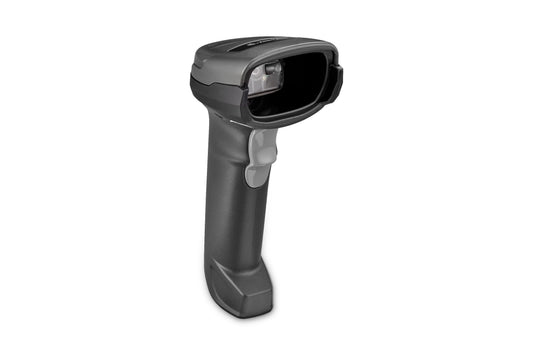
| Cordless scanner for receiving goods and stocktaking | Zebra DS2278 cradle kit (DS2278-SR7U2100PRW) | Also on STORMWARE's list. The kit includes the CR2278 cradle, which is what gives you the COM port |
Why does a POHODA barcode scanner need COM mode?
This is the setting that catches most people. Almost every scanner leaves the factory in USB keyboard mode (USB-HID): it types the code as if you had keyed it in. STORMWARE's hardware compatibility page states that for POHODA the scanner must be able to work as a serial (COM) device, usually through a virtual serial port. USB-HID mode is listed as usable only with the mKasa app for Windows.
In COM mode the scanner still plugs into a USB port, but Windows sees it as a serial port. POHODA then reads the scan directly, finds the stock item and puts it into the document line, with the cursor jumping to the quantity field. Scanning the same item again during a transfer from another document increases its quantity. None of that works reliably if the scanner is just typing digits into whatever field has focus.
COM mode has a second benefit for Czech users. In keyboard mode the scanner has to match the Windows keyboard layout, and with a Czech layout the number row produces ě, š, č and ř instead of digits if the two do not agree. A serial port sends the raw characters, so the layout problem disappears.
How to switch a Zebra scanner to COM mode for POHODA
STORMWARE publishes a configuration sheet for each tested scanner. For the Zebra DS2278 the sequence is:
- Scan Set Factory Defaults to clear any previous configuration.
- Scan USB CDC Host. This turns on COM port emulation.
- Scan the CR suffix code, so every scan ends with a carriage return.
- Open Device Manager in Windows and note the new COM port number under Ports (COM and LPT).
- In POHODA, open the Hardware agenda, add the barcode reader and select that COM port.
On Windows 10 and 11 no extra driver is needed for the COM port. Older systems need the Zebra USB CDC driver. The DS2208 is configured the same way. Other brands use different barcodes for the same steps, for example a Virtuos reader is set to "USB to Serial Port", so always use the sheet for your exact model.
One ordering trap: the DS2278 is also sold as the scanner alone (DS2278-SR00007ZZWW), with no cradle and no cable. That version suits a phone or tablet over Bluetooth. For POHODA on a PC, order the cradle kit.
How do you print barcode labels from POHODA?
POHODA prints labels as ordinary reports from the Zásoby (Stock) agenda. Two reports matter:
| Report | What it prints | Useful option |
|---|---|---|
| Štítky čárových kódů (barcode labels) | A barcode label for each selected stock item | Set the number of copies per item in the print dialog |
| Cenovky zboží (price tags) | A price tag with name, price and barcode | Tick Štítky dle stavu zásoby to print one tag for every unit currently in stock |
Select the items, press CTRL+T, pick the report and preview it before printing. Sort the agenda first if order matters, because reports print in the order shown in the table.
Three settings make the difference between a clean label and a wasted roll:
- Assign the label printer to the report, not as the default printer. On the Sestava tab of the print dialog you can set a specific printer for one report. Point the label reports at the label printer and leave invoices on the office printer. Otherwise the next invoice comes out on a 50 x 25 mm label.
- Define the label size in the Windows driver. Install the manufacturer's Windows driver (ZDesigner for Zebra, the TSC or Honeywell driver for those brands), then create a paper size that matches the roll exactly: label width, label height and the gap. Run the printer's media calibration once the roll is loaded. A label that drifts by a few millimetres each print is almost always a driver size that does not match the roll.
- Fit the report to the label in REPORT Designer. The stock reports are laid out for a general case. Use Přidat in the print dialog to make a user report, then edit it in REPORT Designer to match your label size. Keep the original report untouched and run Soubor / Kontrola sestav after each POHODA update to check that user reports still find their database fields.
Direct thermal or thermal transfer for POHODA labels?
The software does not care. The decision depends on how long the label has to last.
| Question | Direct thermal | Thermal transfer |
|---|---|---|
| Needs a ribbon | No | Yes, wax, wax-resin or resin |
| Typical POHODA use | Price tags, shelf labels, picking and shipping labels | Product labels, warehouse location and asset labels |
| Lifespan | Months, fades in heat and sunlight | Years, depending on label and ribbon |
| Label materials | Direct thermal paper only | Paper and synthetic (PP, PE, PET) |
| Running cost | Labels only | Labels plus ribbon |
The honest trade-off: a shop that prints price tags and replaces them with every price change does not need thermal transfer. A thermal transfer printer can also print direct thermal labels without a ribbon, so if you are unsure, a model like the ZD421t keeps both options open at a modest extra cost.
What goes wrong with POHODA barcode labels?
- The EAN warning. When you type a code by hand, POHODA checks it against the EAN standard and warns you if it is not 8 or 13 digits. Internal codes are fine in Code 128 or Code 39, but a code that will be scanned at another retailer's till should be a real GTIN from GS1 Czech Republic.
- Barcodes that scan in the office but not at the till. Usually the report scales the barcode to fit a small label, which makes the narrowest bars too thin for a 203 dpi head. Give the barcode more width in REPORT Designer, use a larger label, or choose a 300 dpi printer for small, dense Code 128 labels.
- Blank or faint print on a thermal transfer printer. The ribbon is on the wrong way or is the wrong winding for the printer. Zebra desktop printers such as the ZD421t use ribbons wound ink side out.
- The scanner works in Notepad but not in POHODA. It is still in keyboard mode, or POHODA is listening on an old COM port number. Check Device Manager and the Hardware agenda again.
Common questions
Does POHODA work with a scanner in USB keyboard mode?
STORMWARE documents COM mode for desktop POHODA and lists USB-HID as usable only with mKasa for Windows. Set the scanner to USB COM (USB CDC on Zebra) and connect it in the Hardware agenda.
Do I need a special driver for the scanner?
Not on Windows 10 or 11 for the Zebra DS2208 and DS2278 in USB CDC mode. Older Windows versions need the Zebra USB CDC driver.
Does the label printer need to understand ZPL?
No. POHODA prints its reports through the Windows driver, so any 4-inch desktop printer with a proper Windows driver is used like any other printer. ZPL only matters if other software sends raw label code to the printer.
Can POHODA print one label for every item received?
Yes. The Cenovky zboží report with Štítky dle stavu zásoby prints one tag per unit in stock, and a user report can be built to print the received quantity from a goods receipt.
Which barcode types can POHODA print?
EAN for retail goods, plus Code 39 and Code 128 for internal and alphanumeric codes.
Does STORMWARE certify specific label printers?
Its hardware page lists only one barcode label printer. In practice POHODA treats a label printer as a Windows printer, so driver setup and label size matter far more than the brand.
Next step
Browse all label printers and corded or cordless barcode scanners. When the printer is chosen, match it with the right thermal labels and, for thermal transfer models, the matching thermal transfer ribbons, so the first POHODA price tag scans at the till.
Tags: