Setup
Bixolon SRP-330III setup guide: from unboxing to first receipt
Load the paper, connect power and USB, Ethernet or serial, run a self-test, install the Windows driver and print your first receipt from the SRP-330III.
In this guide
This guide takes a new Bixolon SRP-330III from the box to its first receipt. It is written for our model SRP-330IIIESK/BEG, which connects over USB, Ethernet or RS-232 serial, and also covers the USB and serial version SRP-330IIISK/BEG.
You'll need
- The SRP-330III with its AC/DC adapter, power cord and USB A-B cable
- An 80 mm thermal receipt roll, up to 80 mm in diameter
- A Windows 11 or Windows 10 PC with administrator rights
- A network cable to your router or switch, if you print over Ethernet
- A serial cable, if your POS system needs RS-232 (not included)
- A 24 V cash drawer with its drawer cable (optional)
Before you start
Check which model you have
Bixolon names the interface version with letters after the model name. In the user manual, ES stands for USB, Ethernet and serial, and S for USB and serial. So SRP-330IIIESK has an Ethernet port and SRP-330IIISK does not. Everything else in this guide is the same for both.
The SRP-330III prints at 180 dpi with 42 characters per line in the standard font. Its sister model, the SRP-332III, is the 203 dpi version and shares the same manual.
Check the box
Bixolon lists these items:
- The printer
- The AC/DC adapter and the power cord
- A USB A-B cable (1.8 m)
- A paper roll
- The cable cover
- A 2-inch (58 mm) partition
- The installation guide
Keep the partition even if you print on 80 mm paper today. Something missing or damaged? Contact us before you set up the printer.
Choose a spot
- Use a flat, level surface with space around the printer for ventilation. Keep the back and bottom clear.
- Avoid damp, dusty places and places where the temperature changes a lot.
- Keep it between 0 and 40 °C and 10 to 80 % relative humidity.
Connect the power and the cables
Bixolon asks you to connect and disconnect cables only while the printer is switched off.
- Make sure the power switch is off.
- Plug the adapter's DC plug into the power port with the flat side of the plug facing the bottom of the printer.
- Connect the interface cable you will use: USB, network cable (SRP-330IIIESK only) or serial cable. Tighten the screws of a serial connector.
- Connect the cash drawer cable now if you use one (see the drawer step below).
- Fit the cable cover over the connectors.
- Plug the power cord into the adapter and then into a wall socket.
Use only the power supply that came with the printer. If the printer makes a strange sound, smells of burning or smokes, switch it off and unplug it at once.
Load the paper roll
- Push the cover-open lever and open the printer cover. Remove the empty core of the old roll, if there is one.
- Drop the new roll into the paper compartment. Check the direction against the picture in Bixolon's manual: the coated, heat-sensitive side of the paper must face the print head.
- Pull out a little paper past the tear bar.
- Close the cover by pressing firmly on its centre, so the roll is held correctly.
- Tear off the extra paper.
Use thermal paper 79.5 ± 0.5 mm wide, 50 to 80 µm thick. Bixolon recommends papers of 60 to 75 µm and warns that other paper can wear the cutter and print head faster. Avoid rolls whose paper end is glued to the core: the printer may not detect when the roll is empty.
Important
The print head gets very hot during printing. Don't touch it, and change the roll only when the printer is not receiving data, or that data can be lost.
Run a self-test
The self-test shows that the printer, paper and cutter work before you involve a computer. It prints the firmware version and the memory switch settings.
- Check that paper is loaded and the cover is closed.
- Hold down FEED and switch the printer on. Release FEED when printing starts.
- The printer prints its status, then "SELF-TEST PRINT COMPLETE" and "SELECT MODES BY PRESSING FEED BUTTON", and waits.
- Press FEED briefly (less than one second) to finish the self-test.
If you hold FEED for one second or longer instead, the printer opens the virtual memory switch menu (VMSM). There you can change print density, print speed, cutting mode and the buzzers. Press FEED as many times as the menu number, then hold it for one second to select. Your changes are saved only when you choose "0: Exit and reboot printer". If you are not sure, switch the printer off: nothing is changed.
Install the Windows driver
Bixolon's Windows driver for this printer is the "Software POS Windows Driver". It supports Windows 11, Windows 10 and earlier versions, and Windows Server.
- Open the Bixolon download page for the SRP-330III and download the Software POS Windows Driver.
- Run the installer with administrator rights and click "Install".
- Choose the installation option, then select your printer model, SRP-330III, and click "Next".
- Choose the connection type that matches your cable: USB, serial (with the COM port of your computer) or network.
- Complete the installer with "Next" and "Finish".
The same download page has OPOS and JavaPOS drivers, virtual COM port drivers for USB and network, Linux and Mac CUPS drivers, and the BIXOLON Utility for Windows and macOS. Your POS software supplier will tell you which one it needs.
Connect by USB or serial
USB
- Connect the USB A-B cable to the printer and to the computer.
- Switch on the printer. Windows uses the Bixolon driver you installed.
Serial (RS-232)
- With the printer off, connect the serial cable and tighten the connector screws.
- Switch on the printer.
- Set the same baud rate, parity and handshaking in the driver or POS software as in the printer. Bixolon's manual does not list the default serial values; check your self-test printout or contact us.
Connect to the network (SRP-330IIIESK)
The Ethernet port works at 10 or 100 Mbit/s. From the factory, the printer gets its IP address automatically from your router (DHCP) and prints on port 9100.
- With the printer off, connect a network cable from the Ethernet port to your router or switch, then switch the printer on and wait until it has started.
- Open the printer cover, hold FEED for about five seconds, then close the cover. The printer prints the "Checking Interface Setting" menu.
- Press FEED once briefly, then hold it for more than one second to choose "1: LAN Information Print".
- The "LAN SETTING" printout shows the MAC address, IP address, subnet mask, gateway, port and DHCP mode. If no IP address is printed, the printer has not received one: check the cable and the router.
A POS printer should keep the same address. Ask whoever manages your network to reserve this IP address for the printer's MAC address in the router, or set a fixed address with Bixolon's network tools. In the Windows driver installer, choose the network connection, click "Add TCP/IP Port" and enter the IP address and port 9100.
Note
Option "2: LAN Factory Reset and Reboot Printer" in the same menu resets the network settings to the factory values. Use it only if you have lost the printer's network settings.
Connect a cash drawer (optional)
Plug the drawer cable into the drawer kick-out port at the back of the printer. The printer drives the drawer with 24 V. Use a drawer with a coil resistance of at least 24 Ω (maximum 1 A), and never connect a telephone line to this port. Two drawers can share the port with a Y-type adapter cable. You choose when the drawer opens in your POS software or the printer driver.
Print a test receipt
- On Windows 11, open Settings › Bluetooth & devices › Printers & scanners and select the SRP-330III.
- Open the printer properties and click "Print Test Page". It prints as a receipt.
- Print a receipt from your POS software to check the layout, the cut and the drawer.
Problems? See SRP-330III lights and printing problems, or all SRP-330III guides.
Using 58 mm paper
The SRP-330III can print on 2-inch (57.5 mm) rolls. Fit the included partition in the paper compartment in the direction of the arrow shown in Bixolon's manual. Bixolon says the printer switches the media width automatically when the partition is fitted. Also select 58 mm paper in your driver or POS software so receipts fit. The printable width is then 48 mm instead of 72 mm.
Check
Bixolon advises not to go back to 80 mm paper after you have used 58 mm paper, because print quality may drop. Treat the change as permanent.
Frequently asked questions
What does ESK mean in SRP-330IIIESK?
In Bixolon's manual, ES marks the version with USB, Ethernet and serial ports. SRP-330IIISK is the version with USB and serial only.
What is the default IP address of the SRP-330III?
There is no fixed default address. From the factory the printer gets its address by DHCP from your router. Print it with "1: LAN Information Print" in the interface menu (open cover, hold FEED for five seconds, close cover).
Does the SRP-330III come with paper and a USB cable?
Yes. Bixolon lists a paper roll, a 1.8 m USB A-B cable, the AC/DC adapter, the power cord, the cable cover and a 58 mm partition. Serial cables are optional.
Does the Bixolon SRP-330III work with Loyverse POS?
The SRP-330III is not on Loyverse's list of supported printers. On Android, Loyverse lets you try other printers over Ethernet or USB as "Other model", but it does not guarantee they work. For a tested setup, choose a printer from our Loyverse-compatible printers.
What is the difference between the SRP-330III and the SRP-332III?
Mainly the print resolution: the SRP-330III prints at 180 dpi with 42 characters per line, the SRP-332III at 203 dpi with 48 characters per line.
Was this guide helpful?
Used in this guide
Compatible consumables and accessories for the SRP 330III.
Compatible receipt rolls
| Product | Width | Length | Roll Ø | Core | Price | ||
|---|---|---|---|---|---|---|---|
 |
Zebra Z-Perform 1000D 80 Receipt3012973 | 80 mm | — | 40 mm | 12.7 mm | 17,00 zł+VATIn stock | |
 |
Zebra Z-Perform 1000D 80 Receipt3013287 | 80 mm | 11.28 m | 40 mm | 12.7 mm | 18,00 zł+VATIn stock | |
 |
Zebra Z-Perform 1000D 60 Receipt3013286 | 80 mm | 15.54 m | 40 mm | 12.7 mm | 22,00 zł+VATIn stock | |
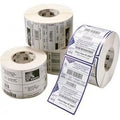 |
Zebra Z-Perform 1000D 60 Receipt3014861-T | 80 mm | 26.52 m | 50 mm | 12.7 mm | 33,00 zł+VATOut of stock | View |
 |
Citizen Thermal Paper3623200 | 80 mm | — | 56 mm | 12.7 mm | 291,00 zł+VATOut of stock | View |
 |
Zebra Z-Perform 1000D 60 Receipt3013689 | 58 mm | 15.54 m | 40 mm | 12.7 mm | 13,00 zł+VATIn stock | |
 |
Zebra Z-Perform 1000D 80 Receipt3013690 | 58 mm | 11.28 m | 40 mm | 12.7 mm | 12,00 zł+VATOut of stock | View |
 |
Citizen Thermal Paper3621900 | 58 mm | — | 48 mm | 12.7 mm | 202,00 zł+VATOut of stock | View |
 |
Zebra Z-Perform 1000D 60 Receipt3007158-T | 57 mm | 12.19 m | 40 mm | 19 mm | 14,00 zł+VATOut of stock | View |
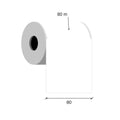 |
Thermal paper 80mm / 80m 12 gKK019262 | 80 mm | 80 m | — | 12 mm | 42,00 zł+VATIn stock |
No matching products.
More SRP 330III guides
Still stuck?
Contact support
Send us your model and a short description of the problem. Our team will help you find a solution.
