Troubleshooting
Citizen CT-S310II error light and printing problems: fixes
What the POWER and ERROR lights on the CT-S310II mean and how to fix paper end, cover open, cutter lock, paper jams, blank print and Windows or serial problems.
In this guide
The CT-S310II shows its state with two lights, the green POWER light and the red ERROR light, and a buzzer. Match what you see to the table, then open the fix. To check the printer on its own, run a self-test: hold FEED while you switch it on.
Find your symptom
| What you see | Likely cause | Fix |
|---|---|---|
| ERROR on and the buzzer sounds | Paper roll empty | Fix 1 → |
| ERROR on with paper loaded, or ERROR flashing after opening the cover | Paper cover or front cover open | Fix 2 → |
| ERROR flashing, buzzer, paper not cut | Cutter locked | Fix 3 → |
| ERROR flashing during long print jobs, printing pauses | Print head too hot | Fix 4 → |
| Paper crumpled or wrapped round the roller | Paper jam | Fix 5 → |
| Receipt blank, faint or patchy | Roll the wrong way round, dirty head or unsuitable paper | Fix 6 → |
| Print cut off at the side or too narrow | Paper width setting doesn't match the roll | Fix 7 → |
| POWER on, self-test prints, Windows prints nothing | Driver, port or print queue | Fix 8 → |
| Random characters, white stripes or no feed over serial | Serial settings | Fix 9 → |
No lights at all? Check the power cord at the AC inlet and the wall socket, and the power switch. The power supply is built in. A dim POWER light means power save mode: press FEED or send a print job.
Fixes
1. Paper endERROR light on, buzzer
CauseThe paper end sensor found no paper.
Fix
- Pull the cover open lever forward and open the paper cover.
- Remove the empty core and drop in a new roll, in the direction shown in Citizen's manual.
- Pull a few centimetres of paper straight out and close the cover until it clicks.
2. Cover openERROR light on or flashing with paper loaded
CauseThe paper cover or the front cover is not fully closed. If a cover is opened while the printer is printing or feeding, the ERROR light flashes.
Fix
- Open the paper cover and check that nothing is caught.
- Pull a few centimetres of paper straight out, then close the paper cover until it clicks. Check the front cover too.
3. Cutter lockedERROR light flashing, buzzer, no cut
CausePaper or a foreign object blocks the autocutter, so the blade cannot move.
Fix
- With the printer on, pull the cover open lever forward and open the paper cover.
- Take out the roll and remove the jammed paper and scraps.
- Reload the roll and close the paper cover. If the light still flashes, press FEED.
If the paper cover won't open or the blade still sticks out:
- Switch the printer off and open the front cover.
- Lift the protective sheet and turn the cutter gear until the blade goes back. If the gear doesn't move, turn it the other way.
- Open the paper cover, remove the cause and close the front cover.
- Load the roll, close the paper cover and switch on. The POWER light should come on.
Important
Never force the paper cover open, and keep your fingers away from the cutter blade. If the blade won't go back, contact us.
4. Print head hotERROR light flashing during long jobs
CauseThe print head got too hot. The printer pauses to protect the head.
FixWait. Printing starts again by itself when the head has cooled.
5. Paper jamPaper crumpled or wrapped round the roller
CausePaper wound itself round the platen roller or was blocked at the paper exit.
Fix
- Switch the printer off, open the paper cover (if it won't open, use Fix 3) and carefully pull out the paper.
- Reload the roll, pull out a few centimetres of paper and close the cover. Keep the paper exit clear.
6. Blank or faint receiptsPaper feeds but print is missing or pale
CauseThermal paper reacts on its coated side only, so a reversed roll prints blank. Pale print usually means a dirty head, unsuitable paper or low density.
Fix
- Blank receipt: turn the roll round and check the direction against the picture in Citizen's manual.
- Faint or streaky print: switch off, open the paper cover and let the head cool for a few minutes. Wipe the print head and the platen roller with a cotton swab moistened with ethyl alcohol. Citizen recommends this every two to three months.
- Use the paper Citizen specifies: 65 to 75 µm thick on a 12 mm core, or 75 to 85 µm on a 25.4 mm core.
- Long Life Print levers inside the paper cover switched on? This mode can make print lighter.
- Still pale? Raise "Print Density" (memory switch MSW10-1) in individual setting mode, as described in the setup guide.
7. Wrong print widthText cut off or receipts too narrow
CauseThe paper width set in the printer or the driver doesn't match the roll.
Fix
- 80 mm roll: remove the partition. 58 mm roll: fit it in the matching slot.
- Set the paper width in quick setting mode: with the paper cover open, hold FEED while you switch on, press FEED three times and close the cover. Then follow the printouts.
- Select the same paper width in your driver or POS software.
8. Nothing prints from WindowsSelf-test works, print jobs don't
CauseThe printer works, so the problem is on the computer: no Citizen driver, the wrong port, or the wrong printer selected.
Fix
- Install the Windows Driver from the Citizen drivers and tools page, if it isn't installed yet.
- Connect only one interface cable. Citizen warns against using USB and serial at the same time.
- Open Settings › Bluetooth & devices › Printers & scanners, open the printer properties and check on the "Ports" tab that the port matches your cable: USB or the right COM port.
- Click "Print Test Page" and check that your POS software uses this printer.
9. Serial printing problemsGarbled text, white stripes or no feed
CauseThe computer and the printer use different serial settings, or the data arrives too slowly for the print speed.
Fix
- Print a self-test and compare the serial values with the driver or POS software. Factory values are 9600 bit/s, 8 data bits, no parity, 1 stop bit and DTR/DSR.
- White stripes or paper that stops feeding: Citizen suggests a higher baud rate (MSW7-1) and a lower print speed level (MSW10-2).
- To see what the printer receives, use hexadecimal dump mode: with the paper cover open, hold FEED while you switch on, then close the cover. Press FEED three times or switch off to leave the mode.
Frequently asked questions
What does the red ERROR light on the Citizen CT-S310II mean?
A steady light usually means paper end or an open cover. A flashing light means a cutter lock, a hot print head or a cover opened during printing.
Why does my CT-S310II beep?
The buzzer sounds for errors such as paper end, a cutter lock or a hot print head. You can change when it sounds, or switch it off, with the buzzer memory switches.
The ERROR light stays on after I fixed the paper and covers. What now?
Switch the printer off and on. If the light stays on, note what the lights do and contact us with the serial number.
Was this guide helpful?
Used in this guide
Compatible consumables and accessories for the CT S310II.
Compatible receipt rolls
| Product | Width | Length | Roll Ø | Core | Price | ||
|---|---|---|---|---|---|---|---|
 |
Citizen Thermal Paper3623200 | 80 mm | — | 56 mm | 12.7 mm | 291,00 zł+VATOut of stock | View |
 |
Citizen Thermal Paper3621900 | 58 mm | — | 48 mm | 12.7 mm | 202,00 zł+VATOut of stock | View |
 |
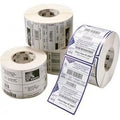
Zebra Z-Perform 1000D 60 Receipt3013286 | 80 mm | 15.54 m | 40 mm | 12.7 mm | 22,00 zł+VATIn stock | |
 |
Zebra Z-Perform 1000D 60 Receipt3014861-T | 80 mm | 26.52 m | 50 mm | 12.7 mm | 33,00 zł+VATOut of stock | View |
 |
Zebra Z-Perform 1000D 80 Receipt3012973 | 80 mm | — | 40 mm | 12.7 mm | 17,00 zł+VATIn stock | |
 |
Zebra Z-Perform 1000D 80 Receipt3013287 | 80 mm | 11.28 m | 40 mm | 12.7 mm | 18,00 zł+VATIn stock | |
 |
Zebra Z-Perform 1000D 60 Receipt3013689 | 58 mm | 15.54 m | 40 mm | 12.7 mm | 13,00 zł+VATIn stock | |
 |
Zebra Z-Perform 1000D 80 Receipt3013690 | 58 mm | 11.28 m | 40 mm | 12.7 mm | 12,00 zł+VATOut of stock | View |
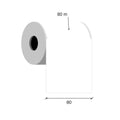 |
Thermal paper 80mm / 80m 12 gKK019262 | 80 mm | 80 m | — | 12 mm | 42,00 zł+VATIn stock |
No matching products.
More CT S310II guides
Related guides
Still stuck?
Contact support
Send us your model and a short description of the problem. Our team will help you find a solution.
