Troubleshooting
Epson TM-m30III troubleshooting: lights, errors and fixes
What the TM-m30III LEDs mean and how to fix paper out, cover and cutter errors, jams, blank receipts, network problems and Wi-Fi or Bluetooth issues.
In this guide
The TM-m30III reports its state with panel LEDs. Find what you see below and open the matching fix.
Find your symptom
| What you see | Likely cause | Fix |
|---|---|---|
| No LEDs at all | No power | Fix 1 → |
| Power, Error and Paper LEDs on, or Paper LED on alone | Paper out, or the roll is nearly empty | Fix 2 → |
| Power and Error LEDs on, Paper LED off | Cover open, cutter blocked or head too hot | Fix 3 → |
| Paper stuck, or the cover won't open | Paper jam | Fix 4 → |
| Error LED keeps flashing | Unrecoverable error | Fix 5 → |
| Error LED flashes briefly after you plug something in | Unsupported device or USB hub | Fix 6 → |
| Receipts come out blank or faint | Roll the wrong way round, dirty head or unsuitable paper | Fix 7 → |
| Only the Power LED on, but nothing prints or the app can't find the printer | Connection, IP address or security settings | Fix 8 → |
| Wi-Fi LED off or flashing, or Bluetooth won't pair | Wireless setup | Fix 9 → |
Fixes
1. Printer won't switch onNo LEDs light up
CauseNo power reaches the printer, or the power button wasn't held long enough.
Fix
- Check the AC cable at the adapter and the socket, and the DC cable at the rear of the printer, under the covers.
- Hold the power button until the Power LED lights. A flashing Power LED means the printer is starting its network, shutting down or updating firmware: wait and don't unplug it.
2. Paper out or nearly outPower, Error and Paper LEDs on, or Paper LED alone
CauseWith the Error LED also on, no paper is detected. With only the Paper LED, the roll is nearly empty (about 24 mm of roll diameter left).
Fix
- Open the roll paper cover with the cover open lever and remove the empty core.
- Drop in a new 80 mm roll, up to 83 mm in diameter, so it unrolls as in Epson's loading diagram.
- Pull out a little paper and close the cover. The printer cuts the paper and goes back online.
3. Error LED on, printer stopsPower and Error LEDs on, Paper LED off
CauseThe roll paper cover is open, the autocutter blade is blocked, paper has jammed, or the head or motor is too hot.
Fix
- Close the roll paper cover firmly.
- If it was closed, open it and remove any jammed receipt or foreign object, such as a staple, near the cutter. The printer recovers when you close the cover.
- After long print runs, let the printer cool for a few minutes. Temperature errors clear by themselves. Don't touch the hot thermal head.
4. Paper jam or cover won't openPaper caught in the printer
CauseA receipt is caught in the paper path or cutter, often because it was held while printing or before the cut finished.
Fix
- Switch the printer off and open the roll paper cover.
- Remove the jammed paper. Never pull it out forcibly.
- Close the cover and switch on. If the cover won't open with the lever, restart the printer and try again.
5. Error LED keeps flashingPower on, Error flashing
CauseAn unrecoverable error, such as a voltage, CPU or communication unit error.
Fix
- Switch the printer off at once: hold the power button until the Power LED flashes, or unplug the DC cable.
- Wait 10 seconds, then switch it on again.
- If the Error LED still flashes, the printer may be faulty. Contact us for service.
6. Error LED flashes after connecting a deviceAbout 5 seconds of flashing, then off
CauseThe device on the USB-A or USB-C port isn't supported, or it is connected through a USB hub.
Fix
- Remove the device or hub.
- Connect only supported accessories directly, such as the OT-WL06, a DM-D30 or DM-D70 customer display, or a barcode scanner.
7. Blank or faint receiptsPaper moves, but little or nothing is printed
CauseThermal paper only darkens on its coated side, so a roll loaded the wrong way round prints blank receipts. Faint print usually means a dirty thermal head.
Fix
- Turn the roll over and reload it as in Epson's loading diagram.
- Use thermal paper 48–80 µm thick and adjust the print density to the paper type.
- Clean the cooled thermal head with a cotton swab moistened with ethanol or isopropyl alcohol, with the printer off. Epson suggests doing this about every three months.
8. Printer not found or nothing printsOnly the Power LED on, no errors
CauseThe printer works, but the computer, tablet or POS app can't reach it.
Fix
- Run a self-test: hold Feed while you switch the printer on. If it prints, the problem is the connection.
- Check the Ethernet LED: steady means connected, flashing means still getting an IP address, off means no link.
- Print a status sheet (open the cover, hold Feed for one second, close the cover, follow the "Next Action" guidance). Check that the IP address is in the same range as your device and enter it in your app or driver. On Windows, check the port as shown in our driver guide.
- Check "Security Mode" on the status sheet. With "RED" (EU printers), Secure Printing is on by default and only encrypted network printing works: unencrypted jobs, such as raw printing on port 9100, don't print. Use RED-compatible Epson software, such as Epson Advanced Printer Driver 6 version 6.10 or later, and ask your POS app supplier whether their app supports it.
Secure Printing can be switched off in Web Config under Advanced Settings › Print › Secure Printing, with the administrator password ("Initial Password:" on the status sheet). Epson does not recommend this: it allows unencrypted communication and is only an option on a secure, managed network. Loyverse POS can't find the printer? Follow our Loyverse setup guide.
9. Wi-Fi or Bluetooth won't connectWi-Fi LED off or flashing, or no pairing
CauseC31CK50112 has no built-in radio: Wi-Fi needs the OT-WL06 unit, and Bluetooth needs the Wi-Fi + Bluetooth model.
Fix
- Unplug the Ethernet cable. While it is connected, wireless LAN stays off.
- Check that Wireless Chip Mode is set to Option Unit and the OT-WL06 is in the USB-A port.
- Re-enter the network name and password, or reset the network settings (see the FAQ below) and start again.
- Bluetooth model: print the status sheet and pair within one minute. Bluetooth is off while Option Unit mode is in use.
Full steps: Connect the TM-m30III to Wi-Fi or Bluetooth.
Frequently asked questions
How do I reset the TM-m30III network settings?
Switch the printer off, close the roll paper cover and remove the bottom cover. Hold the status sheet button while you switch the printer on; it restarts with the factory network settings.
Why are my receipts blank?
The roll is most likely loaded the wrong way round. Turn it over and reload it.
Can I tell the exact error from the LED pattern?
Not always. Epson notes that the LED patterns don't identify every error, so check the cover, paper and cutter first, then restart the printer.
Was this guide helpful?
Used in this guide
Compatible consumables and accessories for the Epson TM-m30III.
Compatible receipt rolls
| Product | Width | Length | Roll Ø | Core | Price | ||
|---|---|---|---|---|---|---|---|
 |
Zebra Z-Perform 1000D 60 Receipt3013286 | 80 mm | 15.54 m | 40 mm | 12.7 mm | 22,00 zł+VATIn stock | |
 |
Zebra Z-Perform 1000D 80 Receipt3012973 | 80 mm | — | 40 mm | 12.7 mm | 17,00 zł+VATIn stock | |
 |
Zebra Z-Perform 1000D 80 Receipt3013287 | 80 mm | 11.28 m | 40 mm | 12.7 mm | 18,00 zł+VATIn stock | |
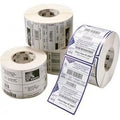 |
Zebra Z-Perform 1000D 60 Receipt3014861-T | 80 mm | 26.52 m | 50 mm | 12.7 mm | 33,00 zł+VATOut of stock | View |
 |
Citizen Thermal Paper3623200 | 80 mm | — | 56 mm | 12.7 mm | 291,00 zł+VATOut of stock | View |
 |
Zebra Z-Perform 1000D 60 Receipt3013689 | 58 mm | 15.54 m | 40 mm | 12.7 mm | 13,00 zł+VATIn stock | |
 |
Zebra Z-Perform 1000D 80 Receipt3013690 | 58 mm | 11.28 m | 40 mm | 12.7 mm | 12,00 zł+VATOut of stock | View |
 |
Citizen Thermal Paper3621900 | 58 mm | — | 48 mm | 12.7 mm | 202,00 zł+VATOut of stock | View |
 |
Zebra Z-Perform 1000D 60 Receipt3007158-T | 57 mm | 12.19 m | 40 mm | 19 mm | 14,00 zł+VATOut of stock | View |
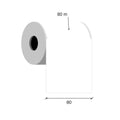 |
Thermal paper 80mm / 80m 12 gKK019262 | 80 mm | 80 m | — | 12 mm | 42,00 zł+VATIn stock |
No matching products.
More Epson TM-m30III guides
TM M30III
How-toConnect the Epson TM-m30III to Wi-Fi or Bluetooth15 min · Medium
TM M30III
ComparisonEpson TM-m30III vs TM-T20IV: which receipt printer to choose5 min · Easy
TM M30III
SetupEpson TM-m30III setup guide: from unboxing to first receipt15 min · Easy
TM M30III
How-toConnect an Epson receipt printer to Loyverse POS20 min · Medium
TM M30III
How-toInstall the Epson receipt printer driver (APD6) on Windows15 min · Easy
TM M30III
How-toConnect a cash drawer to an Epson receipt printer10 min · Easy
Still stuck?
Contact support
Send us your model and a short description of the problem. Our team will help you find a solution.
